

This guide walks you through setting up GPU infrastructure on Porter, from creating a GPU node group to deploying your first GPU-accelerated application. You can deploy GPU-enabled workloads on Porter by creating a fixed node group and selecting a GPU-enabled instance type. Note that this has to be the second node group in your cluster as the default node group is reserved for CPU workloads.Documentation Index
Fetch the complete documentation index at: https://porter-docs-gpu-instance-types-p5.mintlify.app/llms.txt
Use this file to discover all available pages before exploring further.
GPUs are only supported on fixed node groups because cost optimization does not currently support GPU instances. This means you select a specific GPU instance type and Porter scales by adding or removing instances of that exact type.
Creating a GPU Node Group
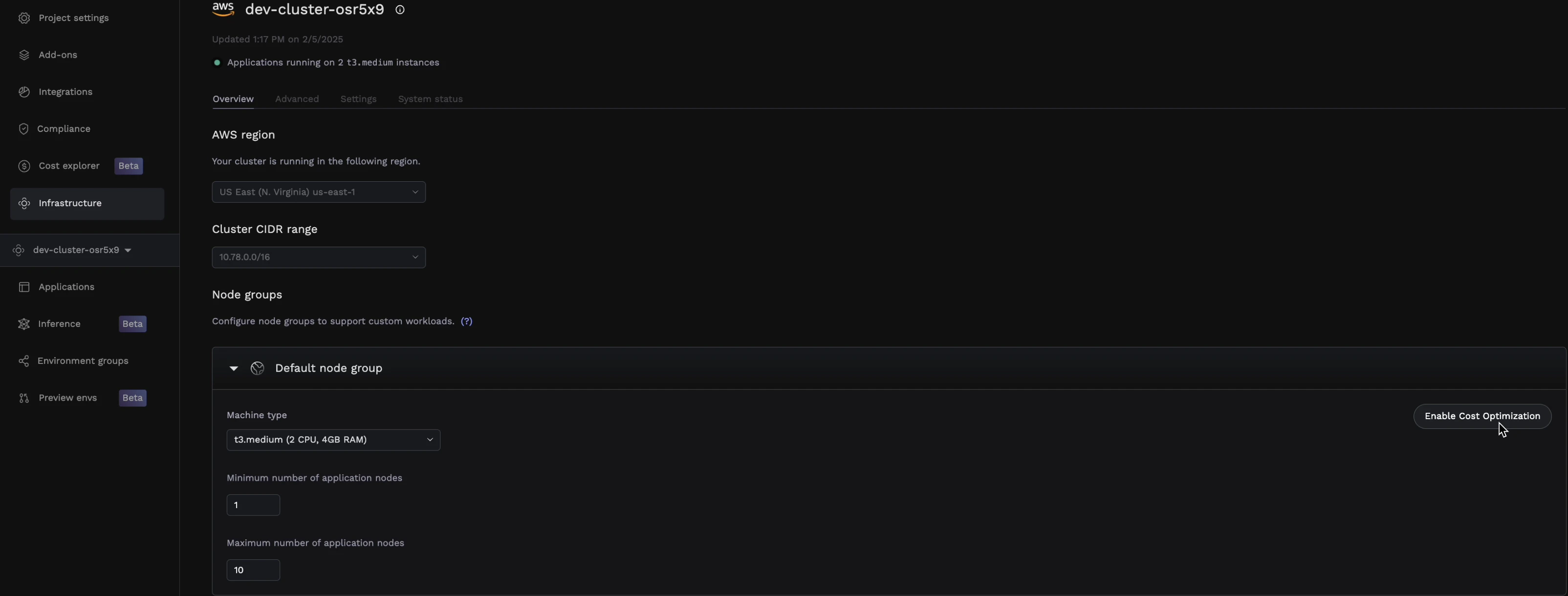
Navigate to Infrastructure
From your Porter dashboard, click on the Infrastructure tab in the left sidebar.
Configure the GPU node group
Configure your GPU node group with the following settings:
| Setting | Description |
|---|---|
| Instance type | Select a GPU-enabled instance type (see Supported GPU instance types) |
| Minimum nodes | Select minimum number of nodes that will be available at all times |
| Maximum nodes | The upper limit for autoscaling based on demand |
Deploying a GPU Application
Once your GPU node group is ready, you can deploy applications that use GPU resources.Create or select your application
Navigate to your application in the Porter dashboard, or create a new one if you haven’t already.
Select the service
Click on the service that needs GPU access (e.g., your inference worker or training job).
Assign to the GPU node group
Under General, find the Node group selector and choose your GPU node group from the dropdown.
Configure GPU resources
Under Resources, configure your GPU requirements:
| Setting | Recommended Value |
|---|---|
| GPU | Number of GPUs needed (typically 1) |
| CPU | Match your workload needs (GPU instances have fixed CPU/RAM ratios) |
| RAM | Match your workload needs |
Request only the GPUs you need. Each GPU request reserves an entire GPU.
Supported GPU instance types
Porter supports the following NVIDIA-enabled EC2 instance types for fixed GPU node groups on AWS EKS clusters.| Family | Instance types | Typical use case |
|---|---|---|
| G4dn (NVIDIA T4) | g4dn.xlarge, g4dn.2xlarge, g4dn.4xlarge | Cost-effective inference, small models, graphics workloads |
| G5 (NVIDIA A10G) | g5.xlarge, g5.2xlarge, g5.4xlarge | Mid-range inference, fine-tuning, small training jobs |
| G6 (NVIDIA L4) | g6.xlarge, g6.2xlarge, g6.12xlarge | Inference, video processing, graphics |
| G6e (NVIDIA L40S) | g6e.xlarge, g6e.2xlarge, g6e.4xlarge, g6e.8xlarge, g6e.12xlarge | Generative AI inference, training of small-to-mid models |
| P4d (NVIDIA A100 40GB) | p4d.24xlarge | Large-scale distributed training |
| P5 (NVIDIA H100) | p5.4xlarge, p5.48xlarge | Large model training and high-throughput inference |
| P5e (NVIDIA H200) | p5e.48xlarge | Frontier model training with expanded GPU memory |
| P5en (NVIDIA H200 + EFAv3) | p5en.48xlarge | Multi-node training requiring high-bandwidth networking |
The smaller
p5.4xlarge SKU (1× H100) is useful when you need H100-class GPUs for single-node training or inference without the cost of a full p5.48xlarge (8× H100). Both p5e.48xlarge and p5en.48xlarge provide 8× H200 GPUs, with p5en adding EFAv3 networking for distributed workloads.porter.run/has-gpu=true and installs the NVIDIA device plugin so pods can request GPU resources through the standard nvidia.com/gpu resource.
Troubleshooting
Pod stuck in Pending state
Pod stuck in Pending state
This usually means there are no available GPU nodes. Check:
- The node group has scaled up (check Infrastructure → Cluster)
- Your GPU request doesn’t exceed available GPUs on the instance type
- The node group maximum nodes hasn’t been reached
Out of memory errors
Out of memory errors
GPU memory errors indicate your model or batch size is too large:
- Reduce batch size
- Use a larger GPU instance with more VRAM
Slow cold starts
Slow cold starts
GPU nodes take longer to start than CPU nodes due to driver initialization:
- Keep minimum nodes at 1 for latency-sensitive workloads
- Consider keeping a warm pool of nodes during peak hours